

Getting Wind Waker Randomizer running takes about ten minutes once you know the two things that trip people up: the exact game version it needs and where the program is allowed to write files. This guide walks through both, then covers Windows, macOS and Linux one by one.
Before you start
The randomizer does not include the game. It reads a copy of The Legend of Zelda: The Wind Waker that you already own and writes a new, shuffled copy next to it. Everything below assumes you have that disc image ready.
The only ISO version that works
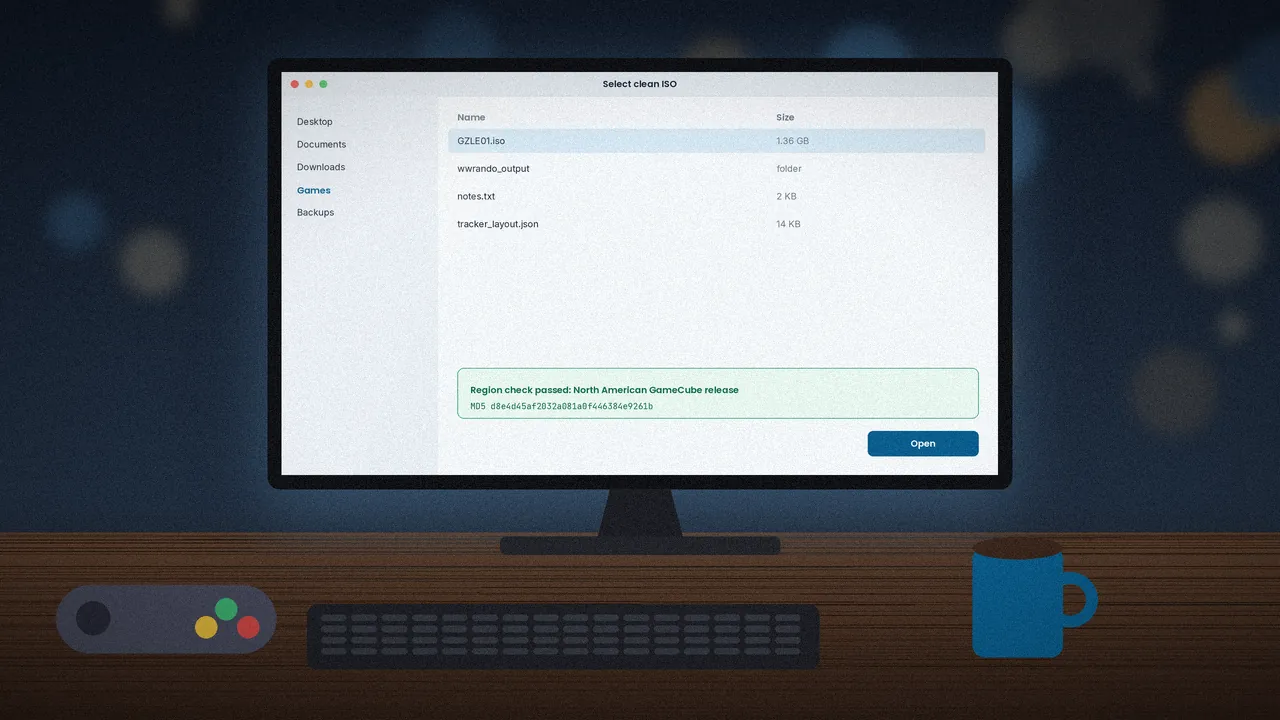
Only the North American GameCube release is supported. The European and Japanese discs will be rejected, and so will Wind Waker HD for Wii U. The project's README lists the expected MD5 checksum, d8e4d45af2032a081a0f446384e9261b, which is the fastest way to confirm you have the right file before you start troubleshooting anything else.
Free disk space and folders
The source ISO is roughly 1.4 GB and every randomized copy is about the same size, so keep at least 3 GB free. Create two folders you control, such as Games/WW for the clean ISO and Games/WW/output for results. Avoid system-protected locations like Program Files, where the app may not have write permission.
Downloading the right build
Release builds are published on the project's GitHub releases page. Since version 1.10.0 there are official builds for Windows, macOS and Linux, all 64-bit.
Picking the file for your system
Open the latest release and download the archive that names your operating system. If you are on a 32-bit system, there is no release build for you; you will need to run the randomizer from source, which is covered at the end of this guide.
Checking the download is genuine
Only download from the official GitHub repository or links on the developer's own site. Third-party mirrors sometimes bundle adware or older versions. Our security overview explains what to look for.
Installing on Windows
Unzip and run
Right-click the downloaded ZIP and choose Extract All. Put the extracted folder somewhere in your user directory, then double-click the randomizer executable. There is no installer; the program runs straight from its folder, which also makes it easy to keep several versions side by side.
Handling SmartScreen or antivirus warnings
Because the app is a packaged Python program without a paid code-signing certificate, Windows SmartScreen may show an "unrecognized app" prompt. Choose More info, then Run anyway, only if you downloaded it from GitHub. If your antivirus quarantines it, restore the file and add the folder as an exclusion.
Installing on macOS and Linux
macOS Gatekeeper
After unzipping, move the app into your Applications folder or another folder you own. The first launch may be blocked as coming from an unidentified developer. Right-click the app, choose Open, and confirm once; macOS remembers the choice afterwards.
Linux permissions
Extract the archive and make the binary executable with chmod +x on the file, then launch it from a terminal the first time so you can see any missing-library messages. Most modern desktop distributions run it without extra packages.
Generating your first seed
Point it at your files
In the main window, set the clean ISO path and the output folder. Leave the settings on their defaults for the first run. The defaults are tuned to give a fair, beginner-friendly seed with a reasonable number of item locations.
Randomize and play
Click Randomize and wait for the progress bar to finish writing the new ISO. Open that file in Dolphin or load it on a modded console. Our Dolphin setup guide covers the best emulator settings, and errors and fixes helps if anything goes wrong.
Running from source instead
If you need a 32-bit setup or want the development version, install git and Python 3.12, then clone the repository with its submodules:
git clone --recurse-submodules https://github.com/LagoLunatic/wwrando.git
cd wwrando
py -3.12 -m pip install -r requirements.txt   # Windows
python3 -m pip install -r requirements.txt    # macOS / Linux (add --user on Linux)
py -3.12 wwrando.py                           # or: python3 wwrando.py
Seeds from source and release builds differ unless a spoiler log is generated, which is intentional to keep races fair.
Installation questions
Do I need administrator rights?
No. The randomizer only needs to read your ISO and write to the output folder you choose. As long as both folders are inside your user directory, a standard account works fine. Needing admin rights is usually a sign the output folder is in a protected location.
Can I keep several versions installed?
Yes, and it is a good habit. Because there is no installer, each version lives in its own folder. Keep the version you are currently playing until the seed is finished, since permalinks only reproduce the same game on the same version.
Where do settings get saved?
The randomizer remembers your last paths and options between launches, so you rarely have to set things up twice. If you move the program folder, double-check the ISO and output paths the next time you open it.
Once your first seed is running, the natural next step is choosing settings that match how long you want to play. Our settings guide explains every option in plain language, and the first-seed tips help you avoid the classic beginner mistakes.