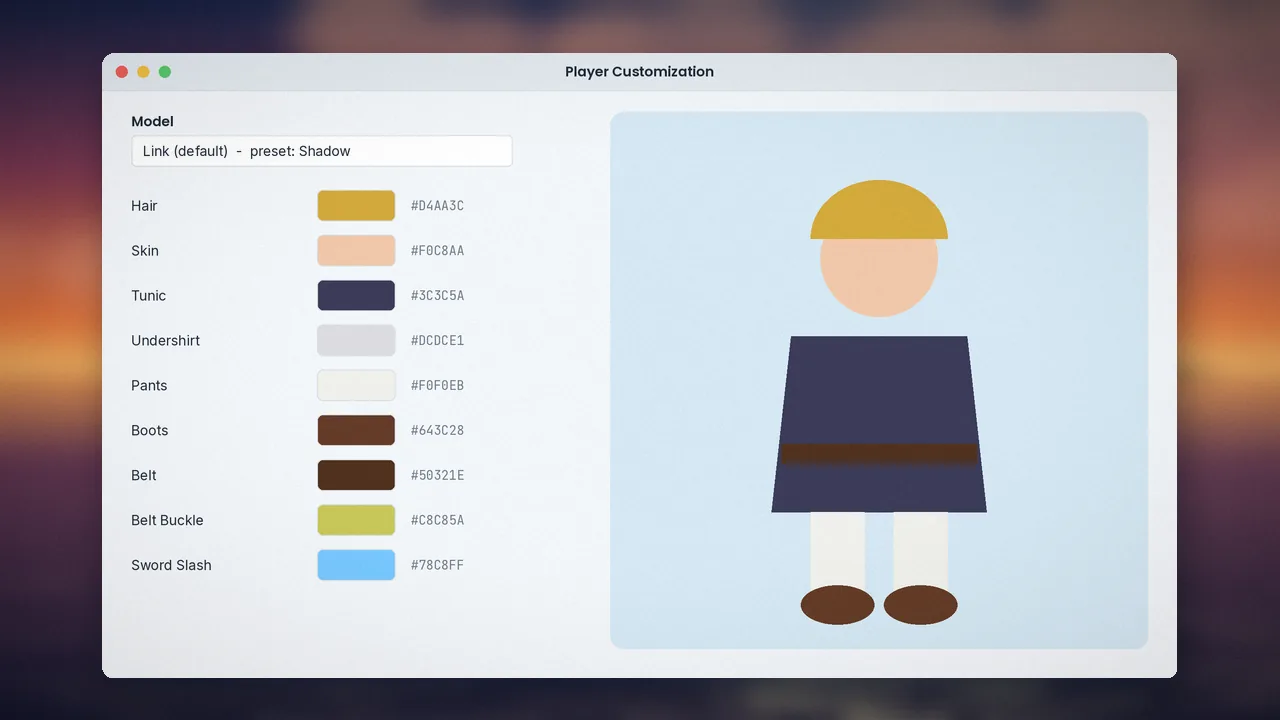
One of the most fun parts of the randomizer has nothing to do with items: you can change how the hero looks. Colour presets, full recolours and community-made models are all built into the Player Customization tab.
Changing colours
Using presets
The default model includes ready-made presets, such as darker and alternative-colour versions of the classic outfit. Choose one from the dropdown and preview it instantly.
Custom palettes
Each part, from hair and skin to tunic, belt and boots, has its own colour picker. You can even change the sword slash trail colours on supported models.
Installing custom models
Where to find them
Community models are collected in a public GitHub repository linked from the release notes. They are made by fans and shared for free.
Adding them to the randomizer
Download the model folder and place it inside the randomizer's models directory, keeping the folder structure intact. Restart the randomizer and the model appears in the dropdown.
Extras models can change
Custom ships
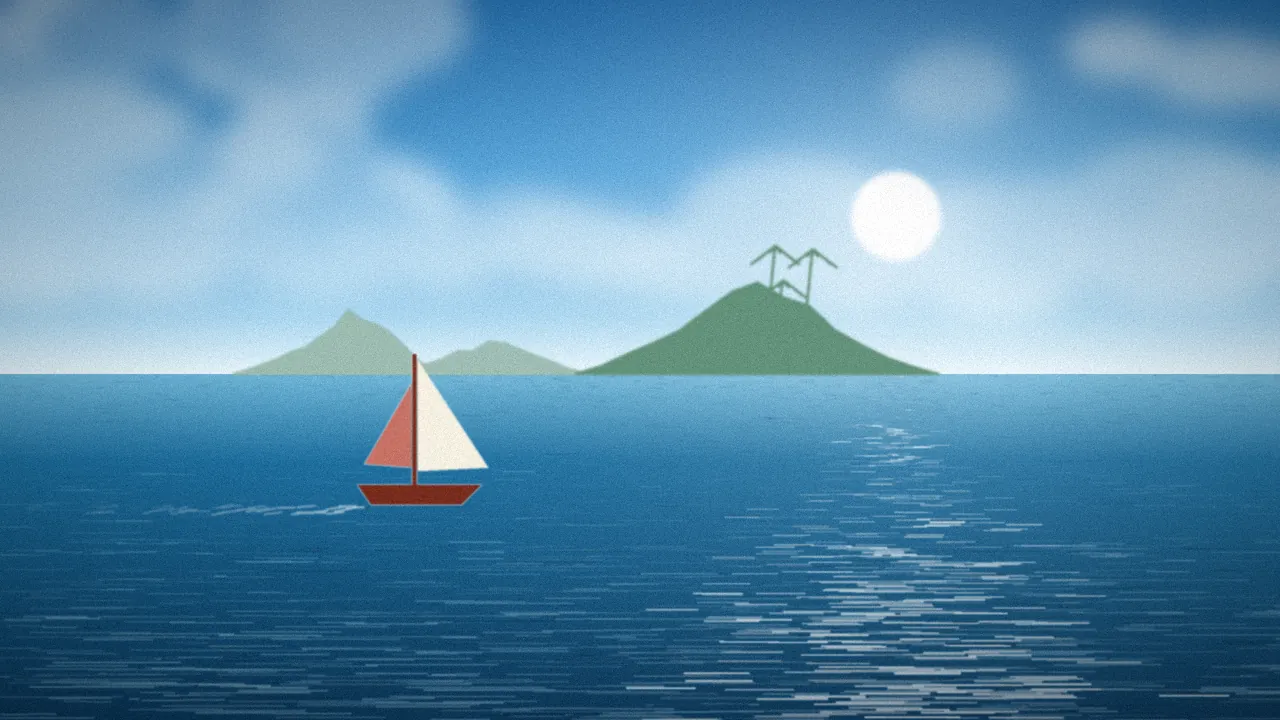
Some models include their own ship, which replaces the boat for the whole run.
Voices and animations
Certain models ship custom voice clips. Texture animations are supported, while bone animations are ignored so gameplay is never affected.
Model troubleshooting
Model missing from the list
Usually the folder is nested one level too deep. Open it and check the model files sit directly in the model's own folder.
Invalid colour errors
The randomizer checks colour masks and will stop with an error if they contain invalid colours, rather than silently ignoring them. Re-download the model or pick a different preset.
Customisation and fair play
Cosmetic only
Models and colours never change item placement, so they are allowed in most races. Settings that matter for fairness are covered in the race mode guide.
Sharing your look
Cosmetic choices are not stored in the permalink, so friends can use their own look on the same seed. Head back to the features overview to see what else the tool can do.
Making your own look
Start from a preset
Presets are a fast way to find a colour scheme you like. Pick the closest one, then fine-tune individual parts with the colour pickers. Small changes, such as a darker tunic or lighter hair, can make the hero feel personal without clashing with the game's art style.
Check contrast in dark areas
Very dark palettes can be hard to see in caves and dungeons. Preview your colours, then test them in a dim location early in the run. If you lose track of the character, brighten the tunic or boots slightly.
Community model etiquette
Community models are shared by their creators for free. Credit the author if you feature a model on stream or in videos, and download models only from the official community repository so you get the latest, tested versions.
Customisation questions
Do custom models affect performance?
Generally no. Models are designed to work within the game's limits, and emulator performance stays the same for most players. If you notice issues, switch back to the default model to confirm the cause.
Can I change models after generating a seed?
Cosmetic choices are applied when the ISO is written, so changing them means regenerating the seed. Because cosmetics are not part of the permalink, generating the same permalink again with a new model gives you the same item layout with a fresh look.